How to Create a Funeral Program Online: A Step-by-Step Guide
Creating a funeral program has never been easier. This step-by-step guide walks you through VirtObits' 9-step process — from uploading a photo to holding a beautiful, print-ready program that truly honors your loved one.
What Is a Funeral Program?
A funeral program — sometimes called an order of service or memorial booklet — is a printed or digital guide distributed to attendees at a memorial or funeral service. It typically includes the person's photograph, life story, family members, service schedule, and personal tributes.
Traditionally, creating one required hiring a graphic designer or wrestling with word-processing software for hours. VirtObits changes all of that with a guided 9-step online builder that produces a beautiful, print-ready program in minutes.
Here is exactly how to do it.
Step 1: Start with AI Magic
Navigate to VirtObits and begin a new program. The very first screen — Step 1 of 9 — is called the Magic Start, a signature feature that sets VirtObits apart.
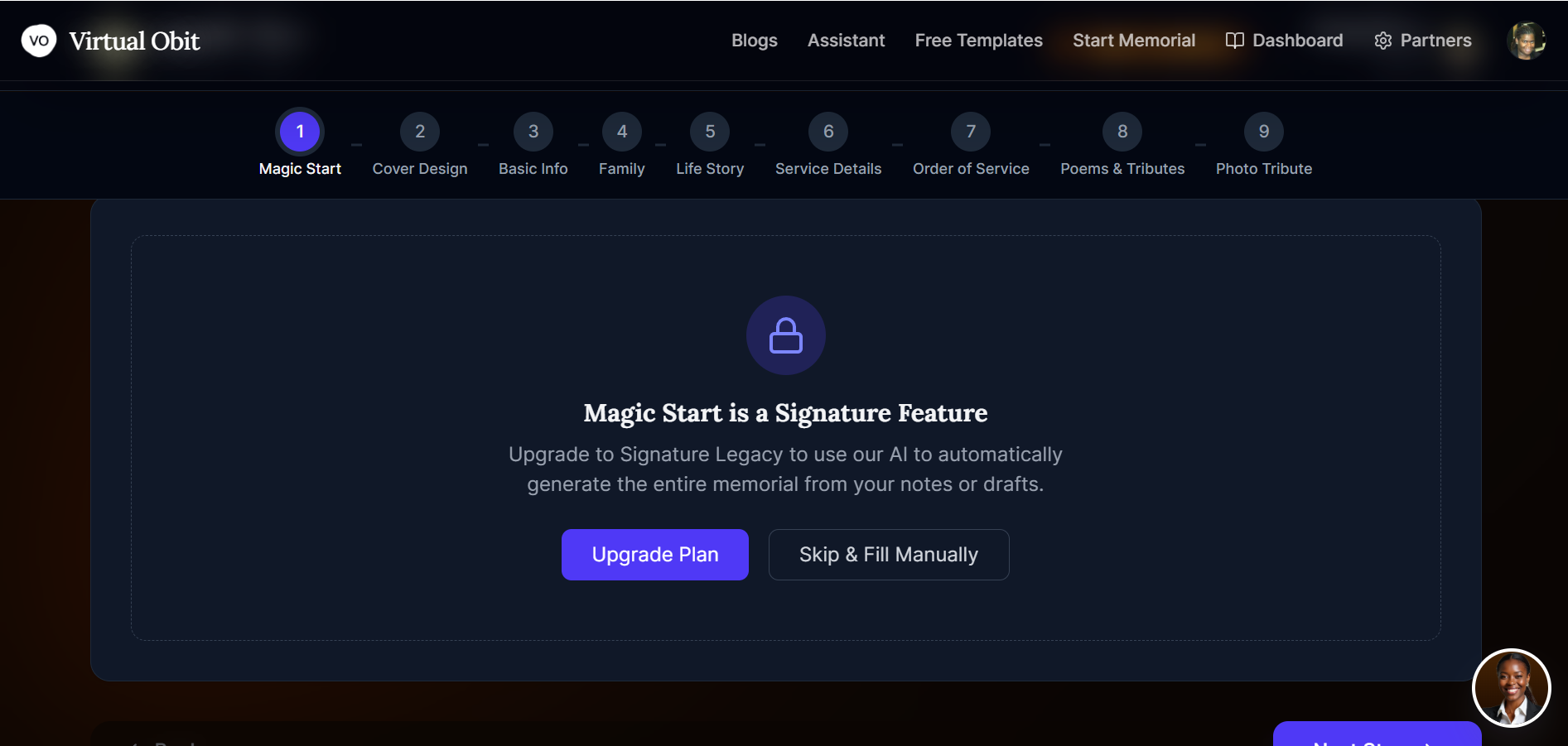
You have two choices: click Auto-Generate to let the AI draft the program for you based on the information you provide, or click Skip & Fill Manually to move through each step yourself. Either way, every field can be edited before printing.
Tip: Even if you choose to fill manually, the AI will offer to help at several steps along the way.
Step 2: Upload a Cover Photo and Choose Your Design
In Step 2, you will upload the photograph that appears on the cover of the program — typically the most meaningful portrait of your loved one.
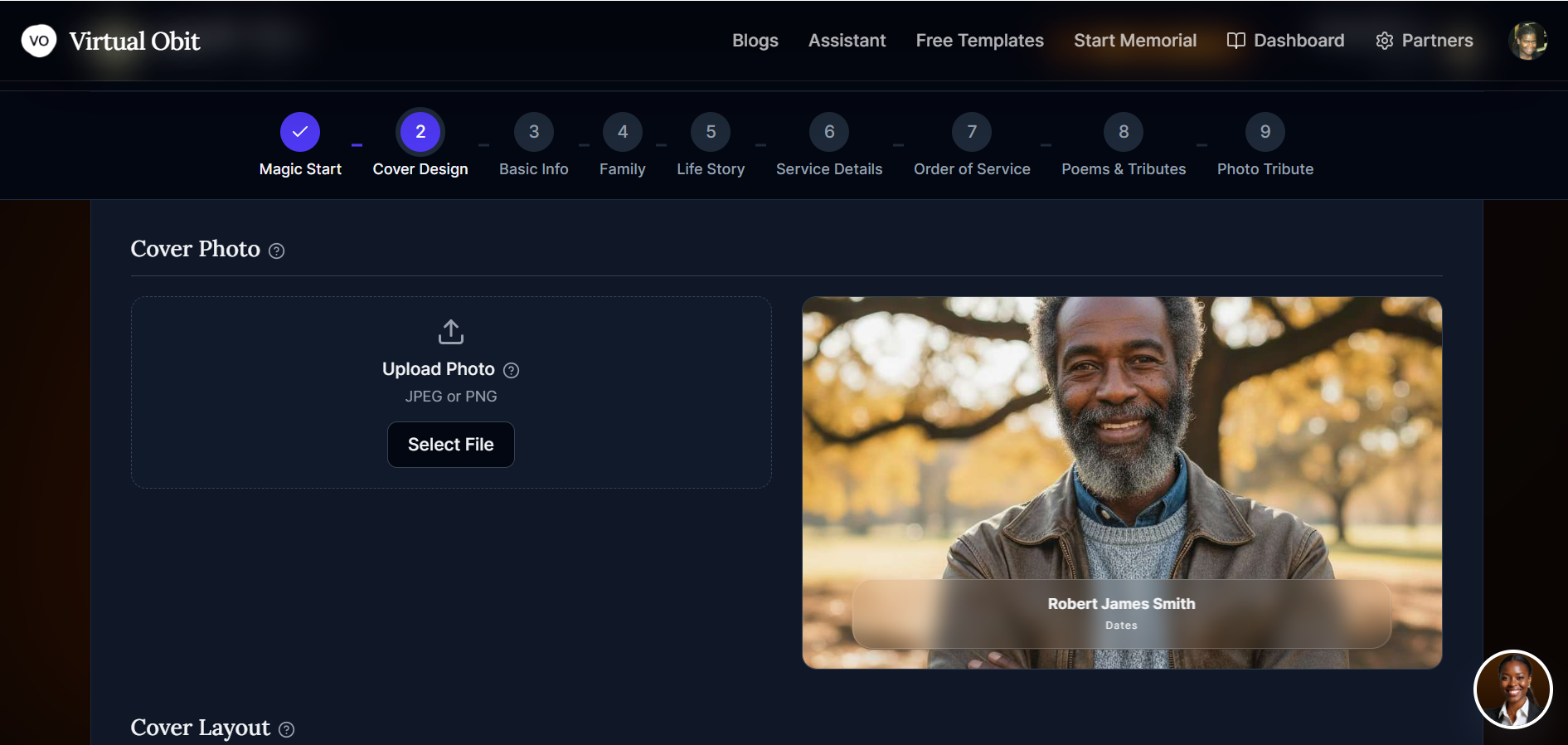
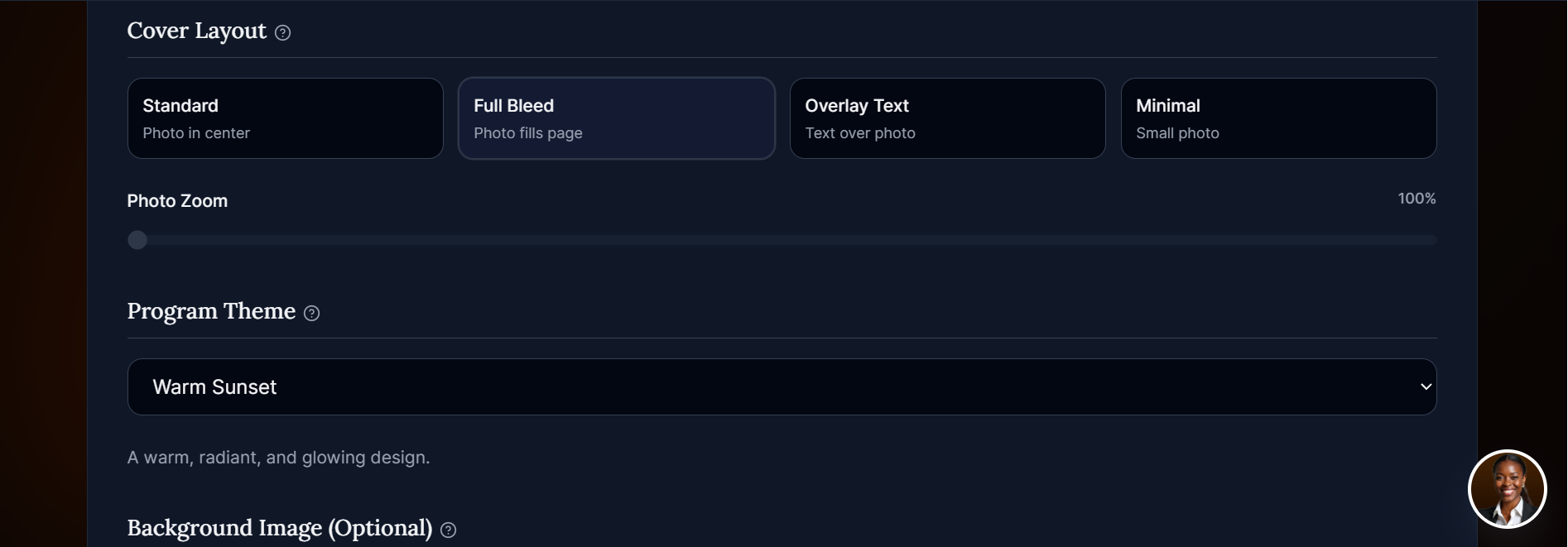
Once the photo is uploaded, you will choose from four cover layouts: Standard, Full Bleed, Overlay Text, and Minimal. You can also select a program theme from a dropdown — dozens of elegant options are available — and set the subtitle and description text.
Finally, you can add a background image to the interior pages. VirtObits lets you either generate one using AI — simply describe the scene — or upload your own photograph.
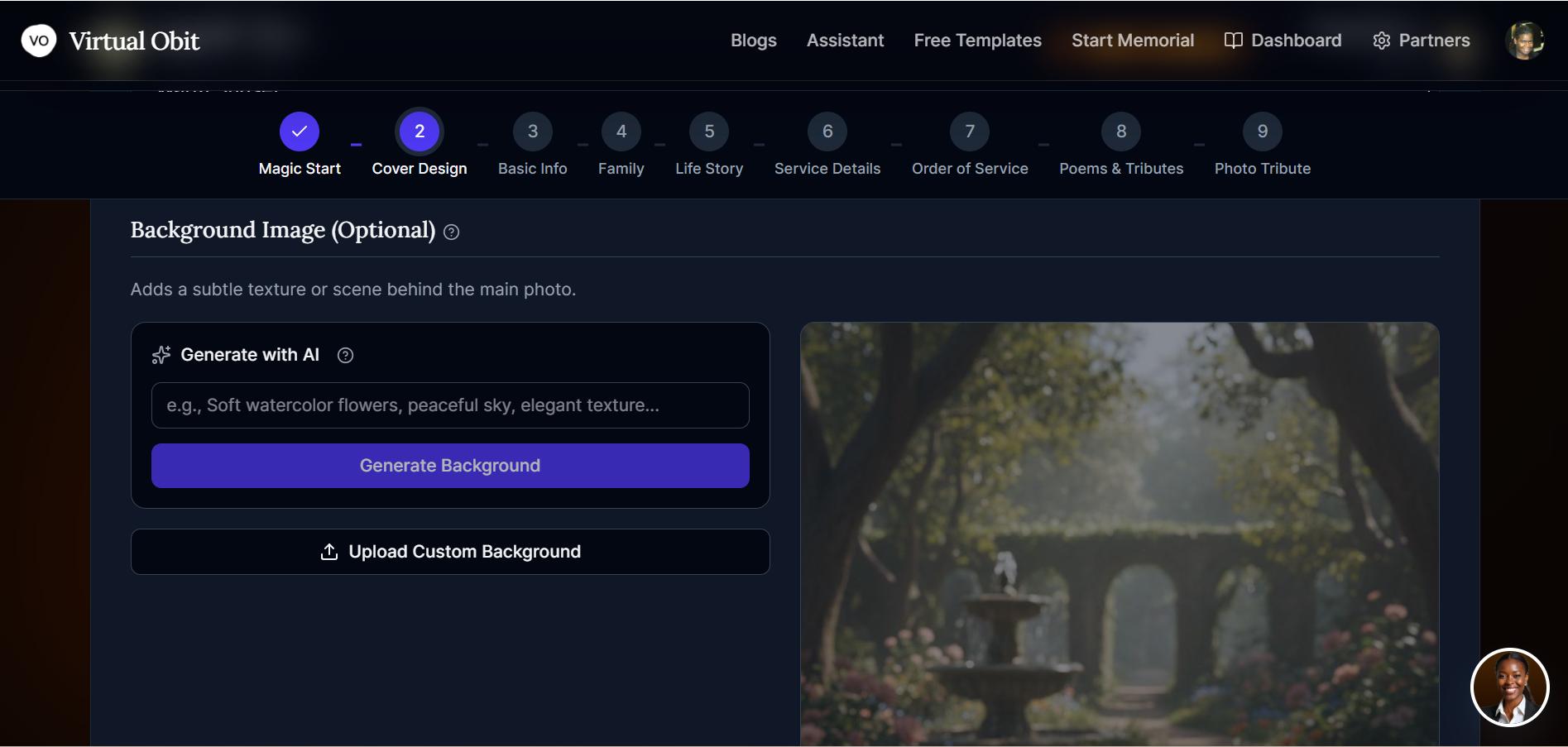
The AI backgrounds are tasteful and serene: soft florals, peaceful gardens, golden light — all designed to complement the tone of a memorial.
Step 3: Enter Basic Information
Step 3 asks for the essential details that will appear throughout the program.
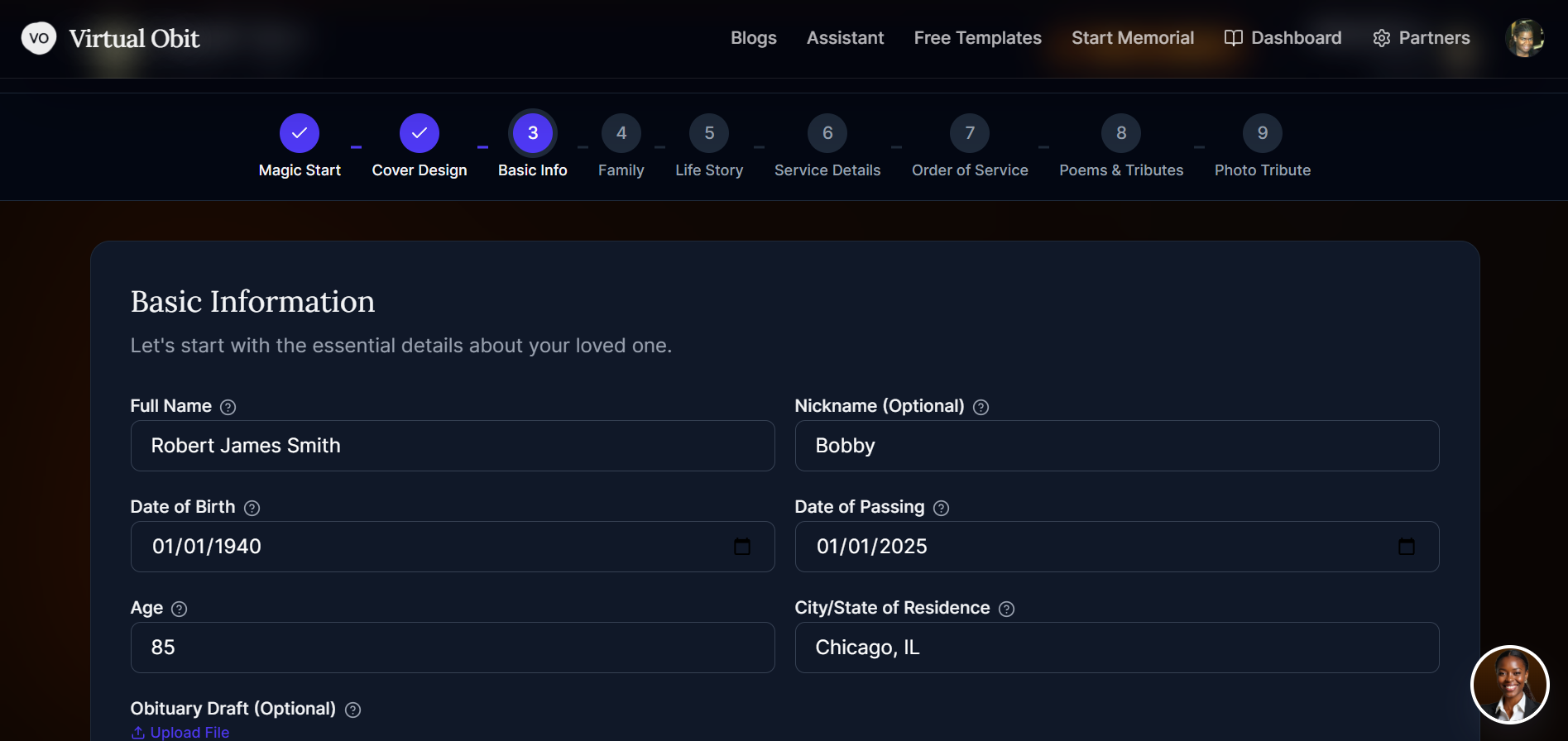
You will fill in:
- Full legal name and preferred nickname
- Date of birth and date of passing
- Age at time of passing
- City and state of residence
This information populates the cover, program header, and other sections automatically — so you only enter it once.
Step 4: Add Family and Loved Ones
Step 4 is the family section, where you list the people left behind.
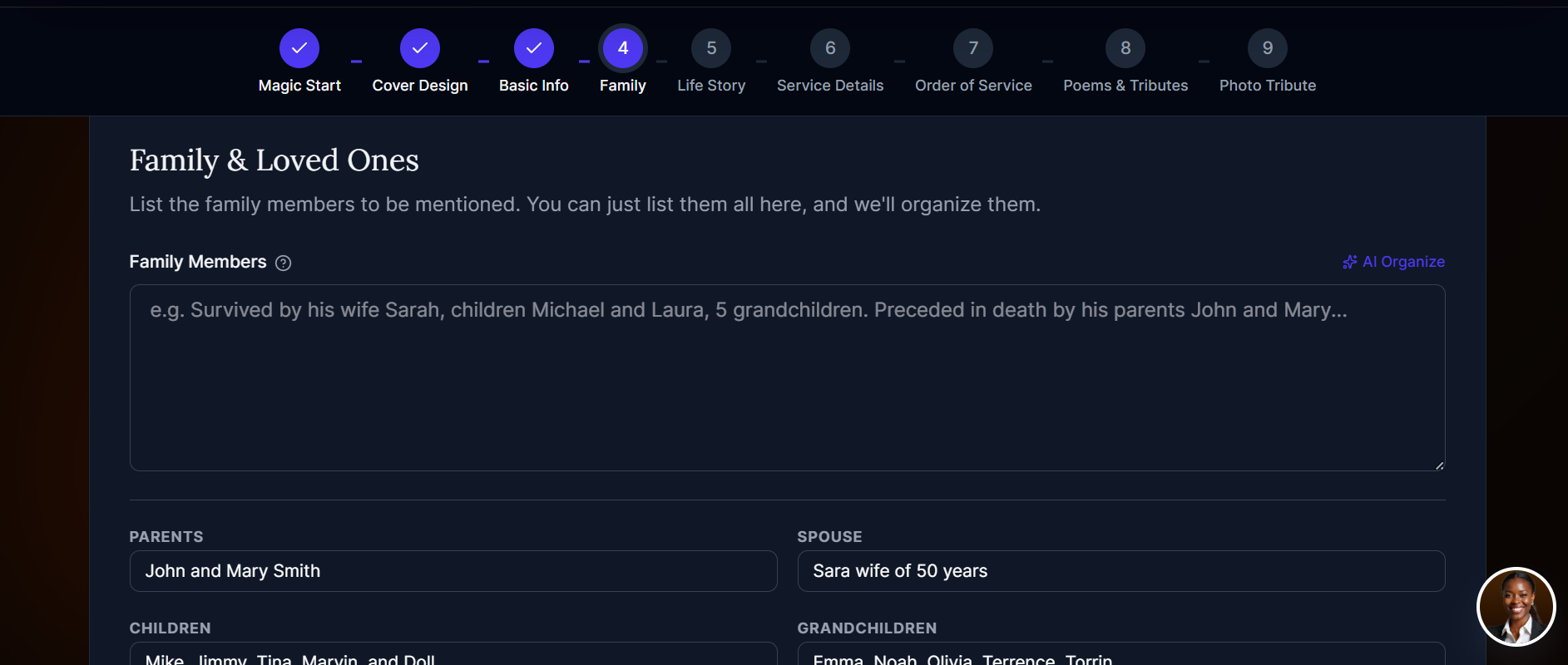
You can enter names under the standard categories — parents, spouse, children, and grandchildren — or add custom relationship labels. If you have a long list of names, the AI Organizer button can help sort and format them into a natural sentence structure.
Step 5: Write the Life Story
Step 5 is the heart of the program — the biographical narrative that captures who your loved one truly was.
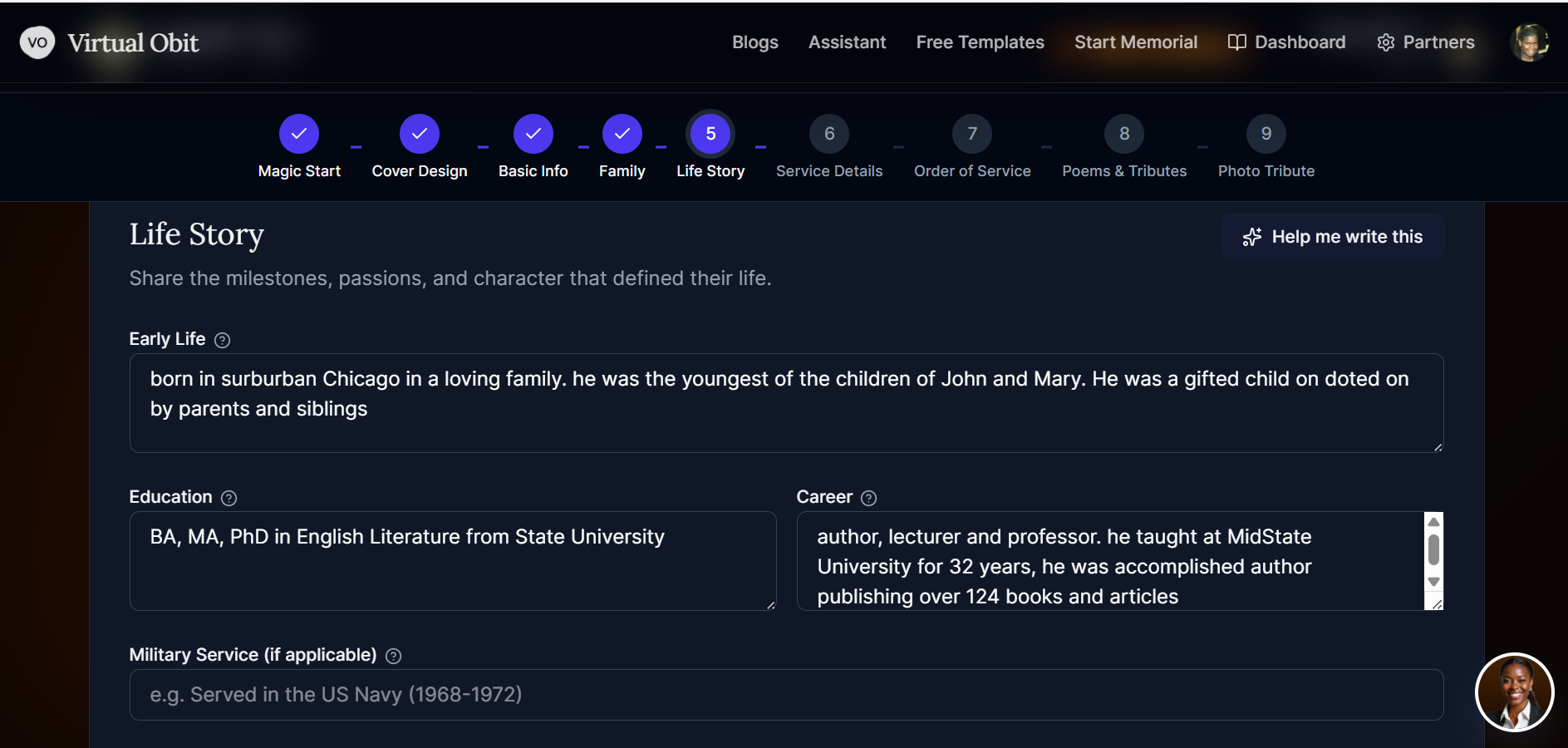
VirtObits divides the life story into four meaningful chapters:
- Early Life — childhood, upbringing, and formative experiences
- Education — schools attended and degrees earned
- Career — professional life and lasting accomplishments
- Military Service — for veterans: branch, years served, and honors received
Each section has a "Help me write this" button that uses AI to draft the text for you — ideal for moments when grief makes it hard to find the right words.
Step 6: Enter Service Details
With the biography written, Step 6 captures the logistics of the memorial service itself.
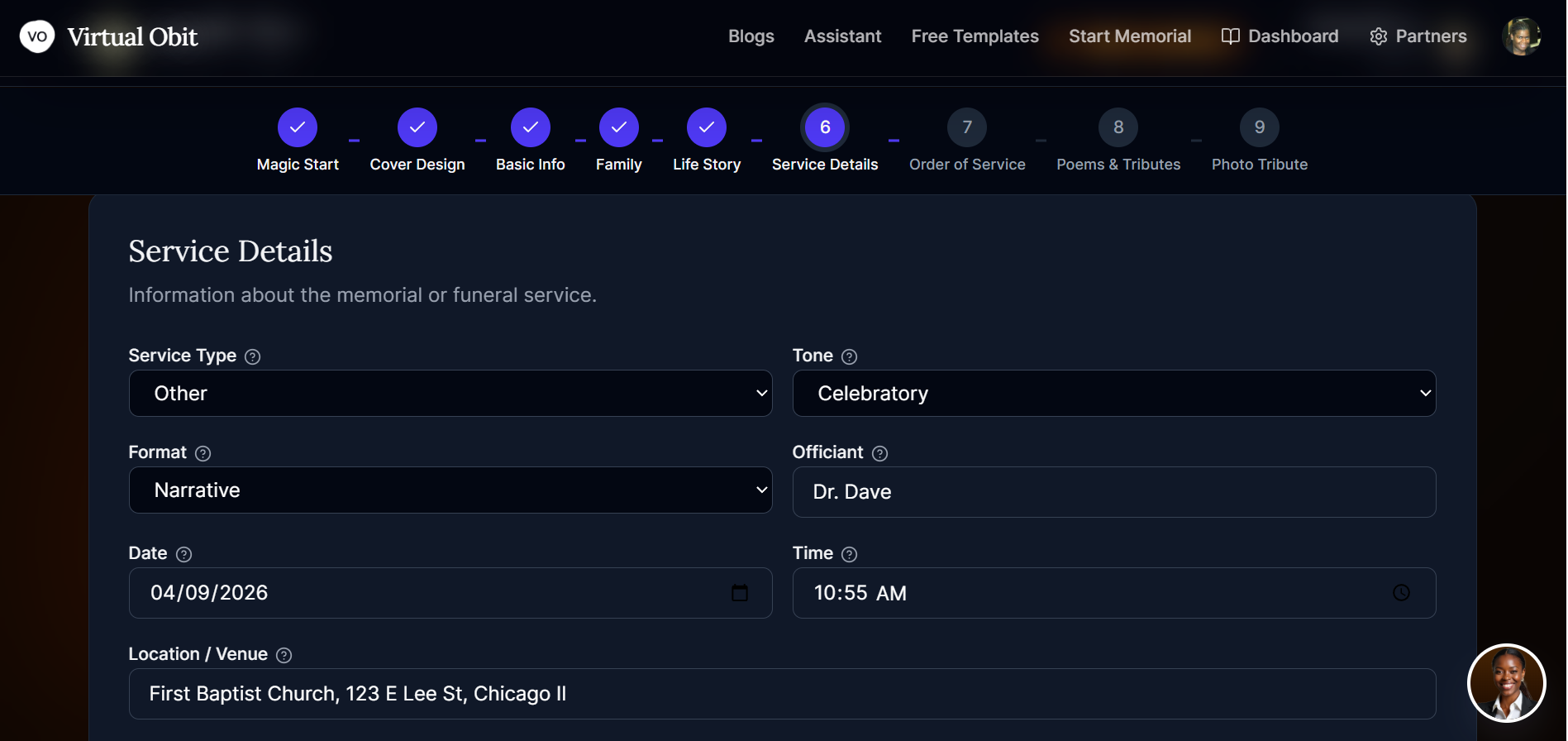
You will provide:
- Service type (funeral, memorial service, celebration of life, graveside)
- Tone and format preferences
- Officiant's name and title
- Date, time, and full address of the service
This information is used in both the printed program and the digital memorial page.
Step 7: Build the Order of Service
Step 7 is the order of service — the sequence of events that attendees will follow during the service.
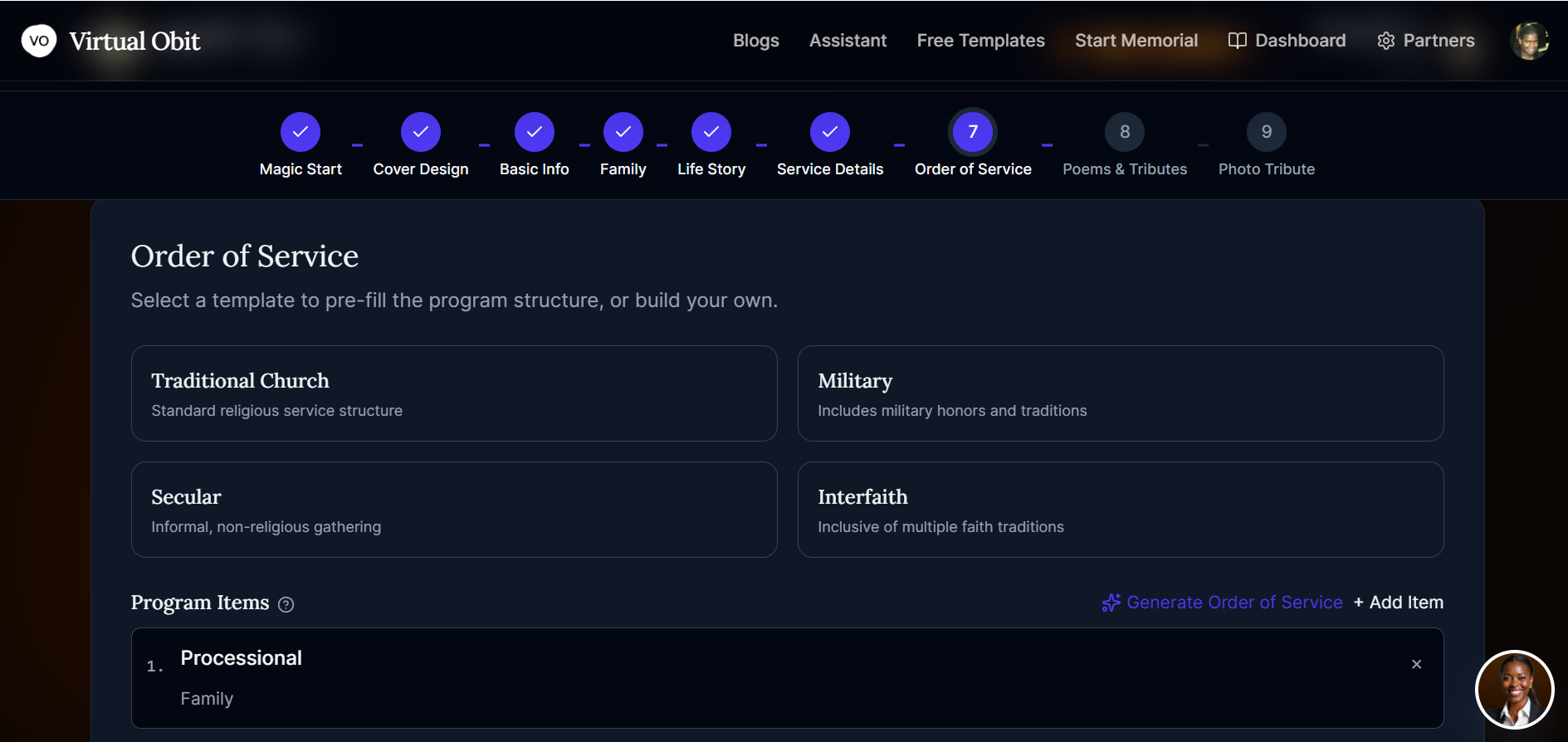
Choose from four service templates:
- Traditional Church — opening prayer, scripture readings, hymns, eulogy, committal
- Military — includes honors ceremony, rifle salute, and flag presentation
- Secular — music-centered with no religious elements
- Interfaith — inclusive of multiple traditions
Once a template is selected, the program items populate automatically. You can reorder, add, or remove items, and the AI can generate additional service elements if needed.
Reviewing and Finalizing Your Program
After completing the 7 guided steps, you will arrive at the Summary Dashboard — a clean overview of everything in the program.
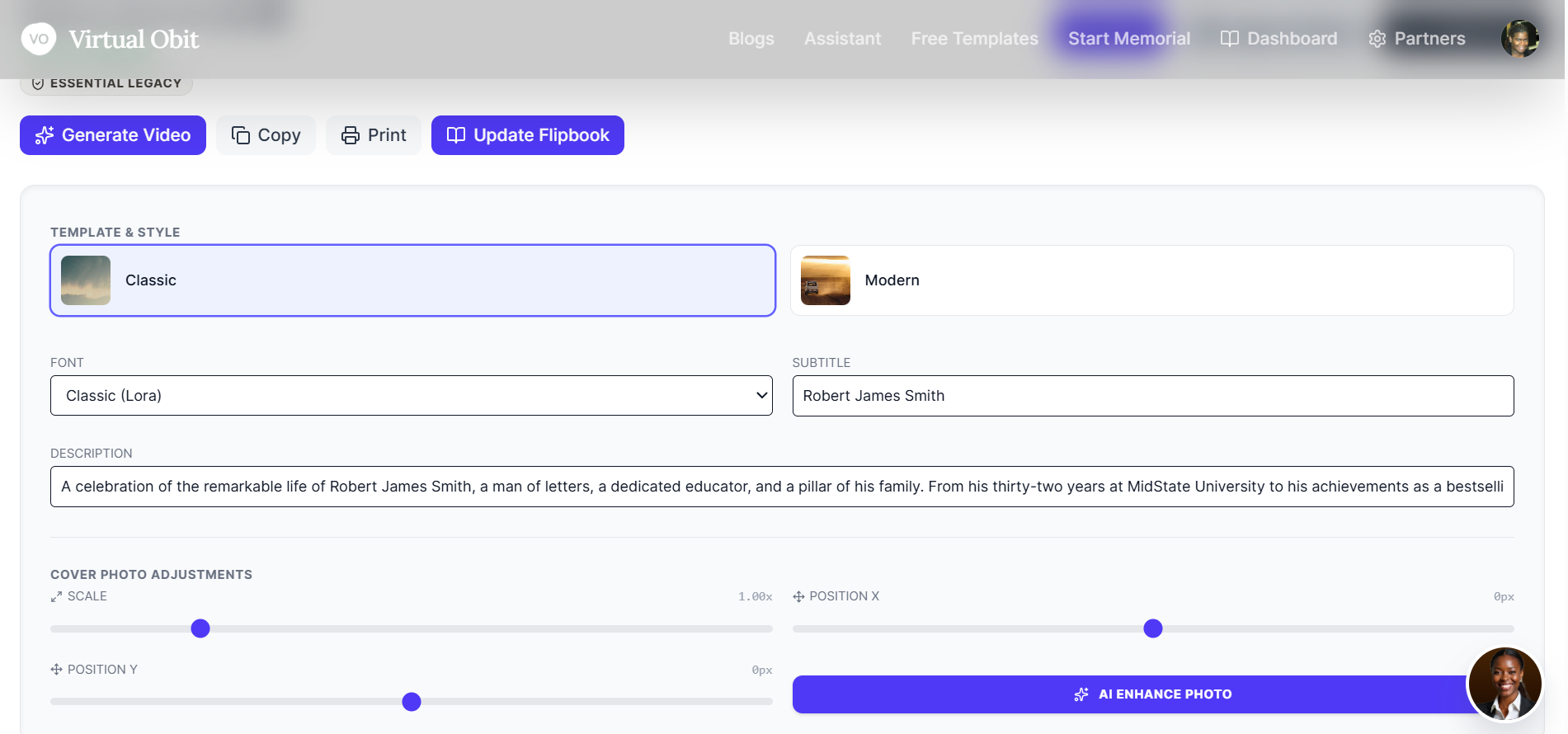
The dashboard has tabs for the Program, Memorial Card, Presentation slides, and Legacy Products. Switch to the Program tab for a full digital preview of your work.
Click into the Print and Design View to make final adjustments to the template style and typography.
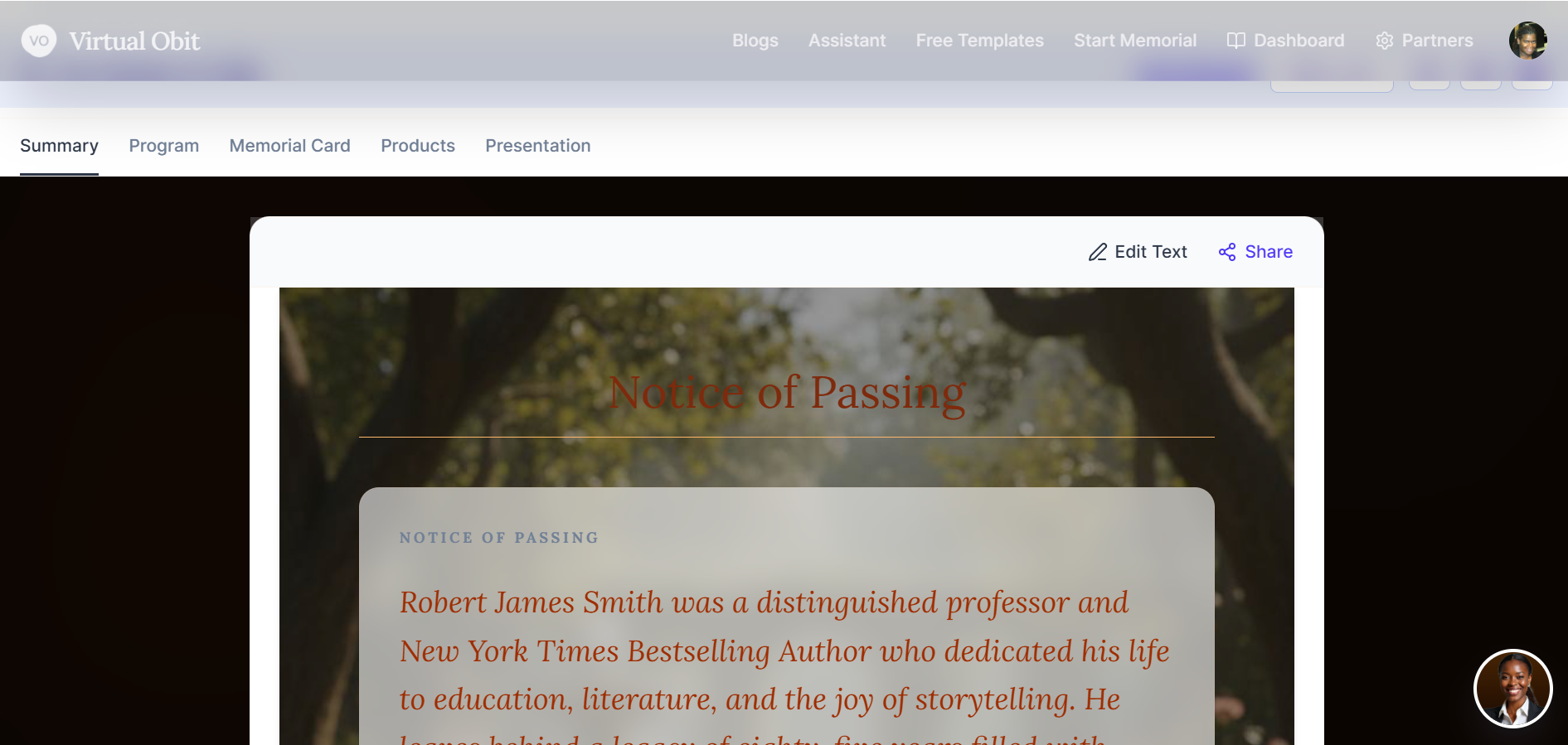
You can switch between Classic and Modern templates, choose fonts, and fine-tune the cover photo crop and placement — all without leaving the browser.
Legacy Products: Lasting Physical Tributes
Before printing, browse the Legacy Products section. VirtObits offers meaningful keepsakes that pair beautifully with the digital program.
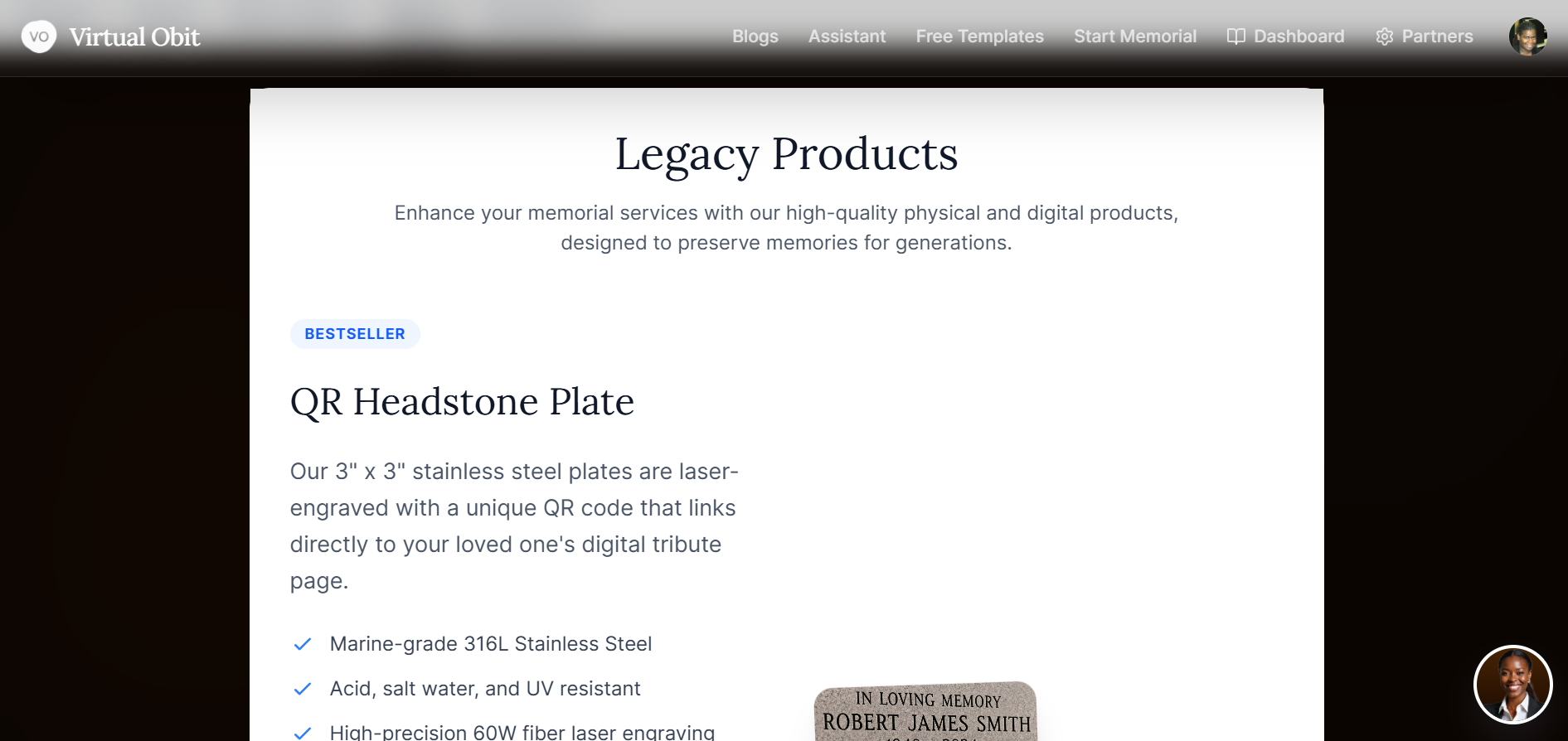
The most popular item is the QR Headstone Plate — a weatherproof plate that, when scanned, opens the full digital memorial for anyone visiting the gravesite. It is the highest-rated product in the catalog and a lasting way to share the life story with future visitors.
The Finished Program
Once everything is finalized, your program is ready to view, download, and print.
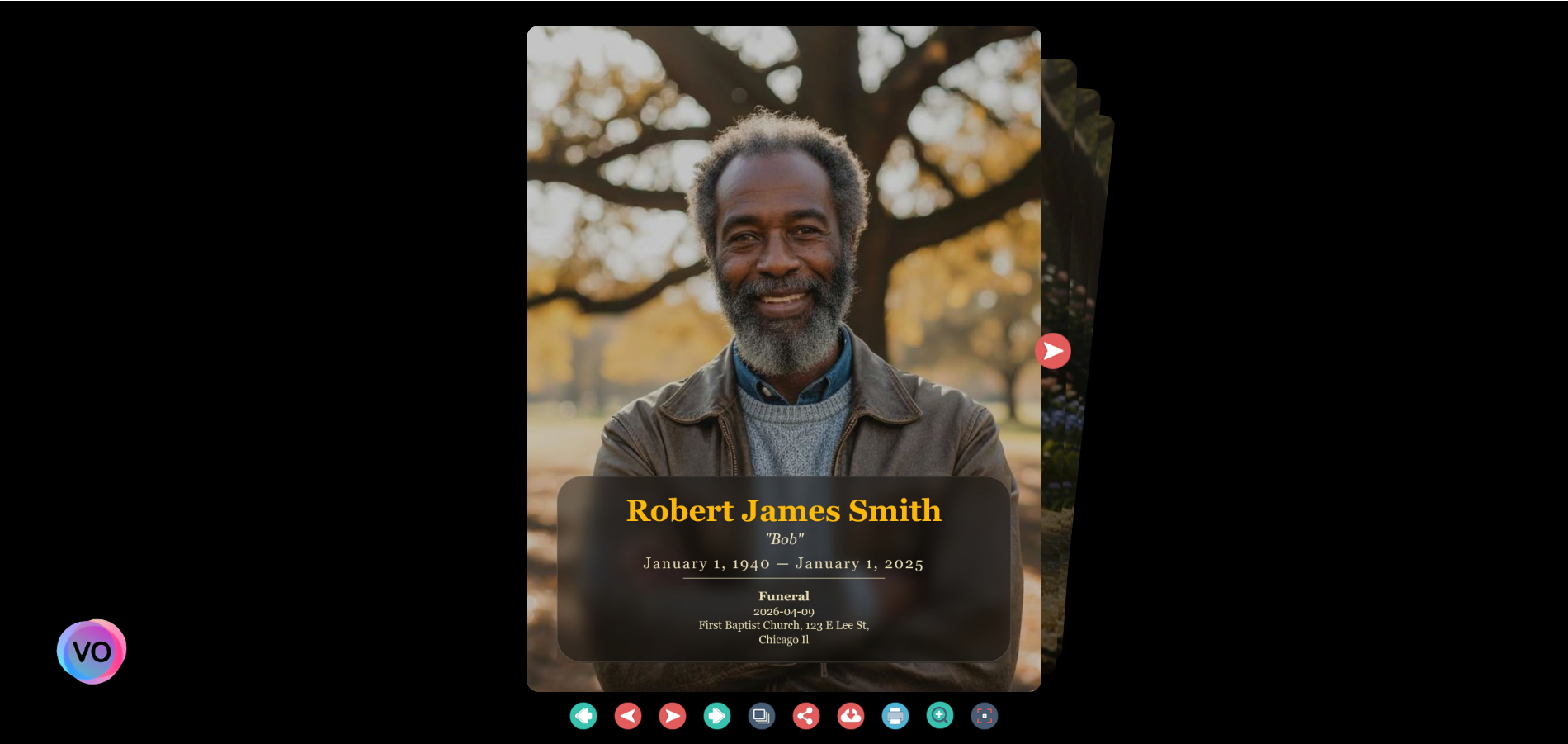
The completed program opens as a beautiful flipbook — elegant, print-ready, and sized for standard letter paper or booklet format. You can share the link digitally or download a PDF for printing at home or through a local print shop.
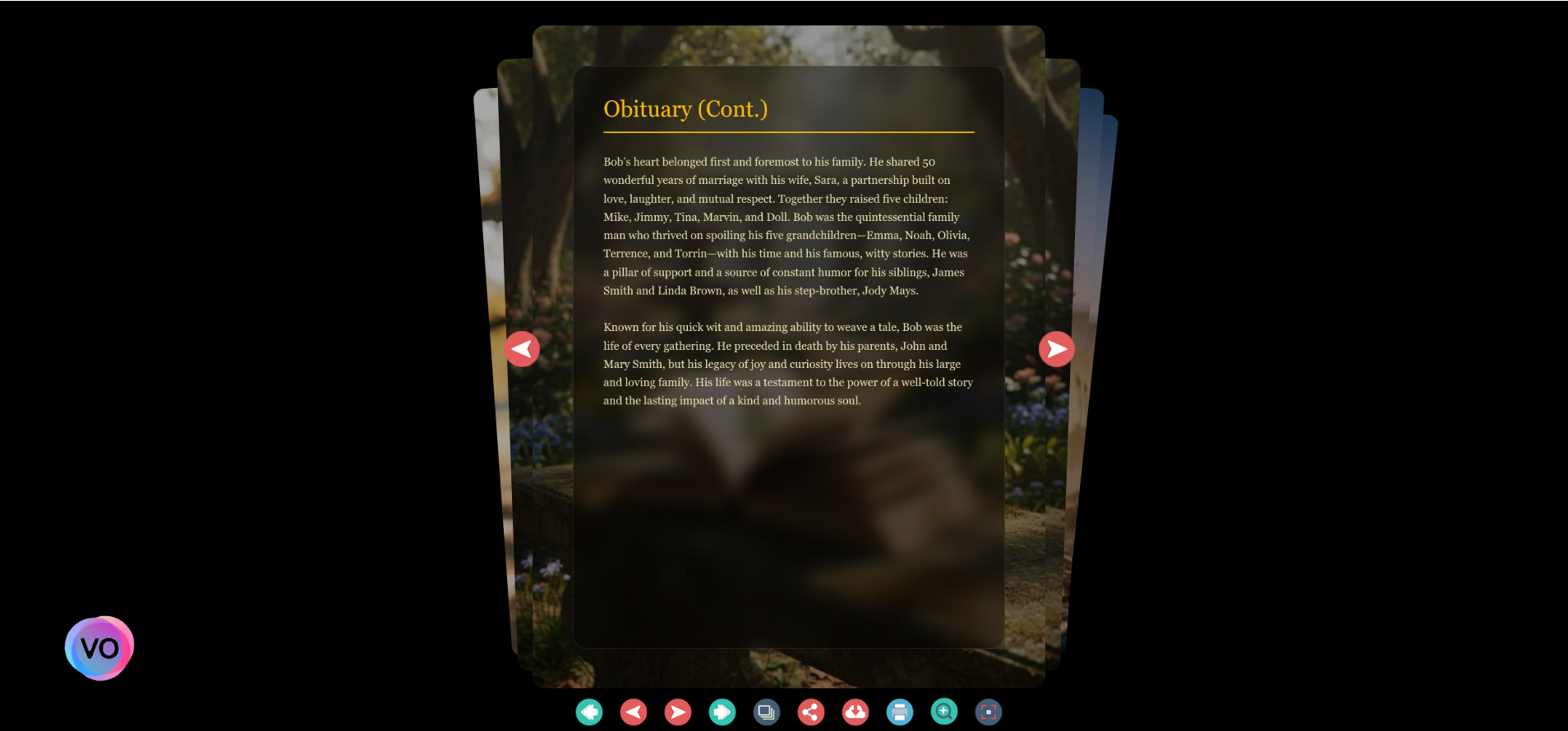
Every page is formatted with care — consistent margins, clean typography, and a design that honors the dignity of the occasion.
Creating a Funeral Program Has Never Been Easier
VirtObits was built for families who are grieving — not for designers or tech experts. The guided 9-step process removes the guesswork, the AI tools help when words are hard to find, and the finished program is something you will be proud to share.
When you are ready, VirtObits is ready too.